Ravioli
Its a place to make music, ascii art and shader visuals. Its really young and quickly evolving. Nobody knows where its going. This help page is probably already outdated by the time you are reading this.
The help section is entirely written by the community. If you find anything missing or incomplete, change itRavioli is also entirely written by the community. If you want to contribute check out the source code and ask around, for a quick start maybe the contribution page helps
Basics
You have a cursor you can move around using the arrow keys, and you can type whatever you want.
Ravioli supports Strudel code, Basil code and some custom code explained in the other tabs.
Modes
You can change edit modes with Tab. There are three edit modes:

- Replace (block cursor): when you type, you replace whatever was there.
- Insert (thin cursor): when you type, you push the text to the right of the cursor. You can also delete to move text back.
- Caw (little crow): you can type and press space to chat with temporary messages or make sounds.
Blocks
Ravioli parses text in blocks of contiguous characters. Code ends up more as blobs than as neat lines. You can tell what is a block by the colored highlights:

If you find that a piece of code doesn't work, i might be because the code in that block is touching some other text that cannot be parsed as your intended language (strudel code touching some random text, for example). Keep some space around your code blobs.
Evaluation
we can evaluate with ctrl+enter, each supported language receives all blocks to evaluate, ignoring the ones that fail to produce meaningful output. this means we can mix text, code and art, without the need to declare anything.
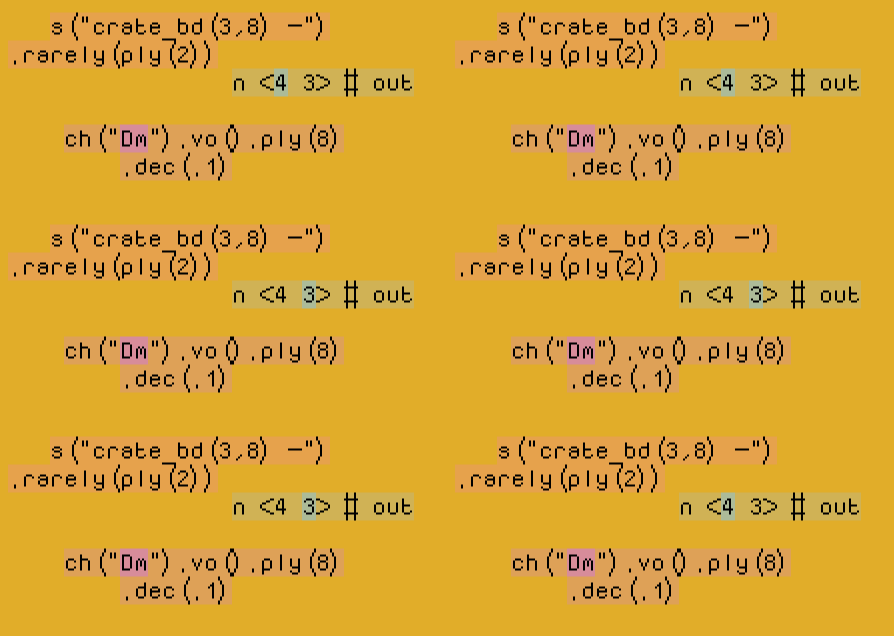
you can tell if a block is running by watching the highlights
Carrying
from any mode, you can press alt to pick up a block of text. you can then carry the text around and drop it somewhere else by pressing alt again:
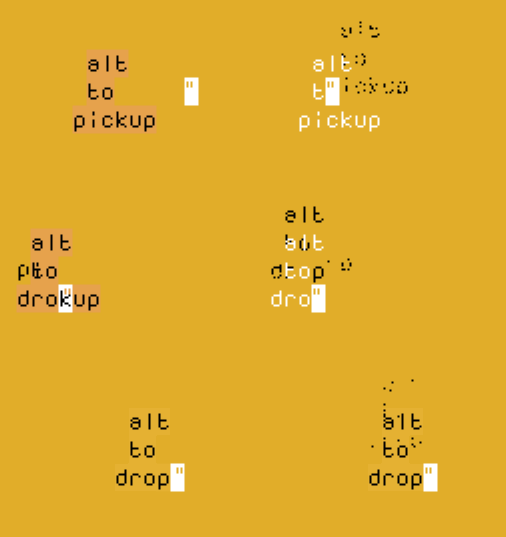
you cannot carry blocks bigger than twice the grid column size (100 chars by default)
also, you can press alt while holding ctrl to pick up a copy of the block
throwing
when carrying text, instead of dropping it with alt, you can also throw it by holding alt, then pressing arrow keys:
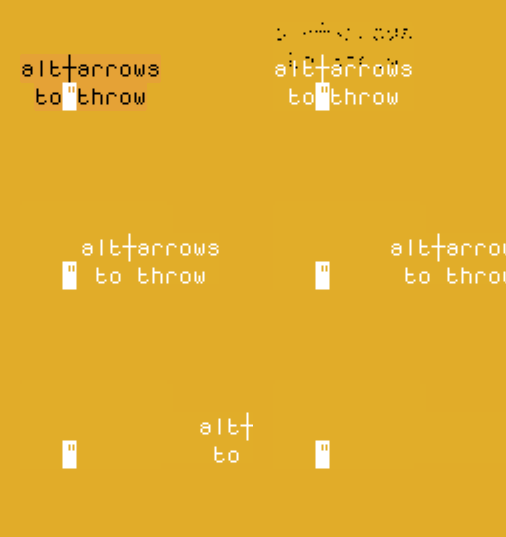
in addition to alt+up, you can also press space to throw upwards
catching
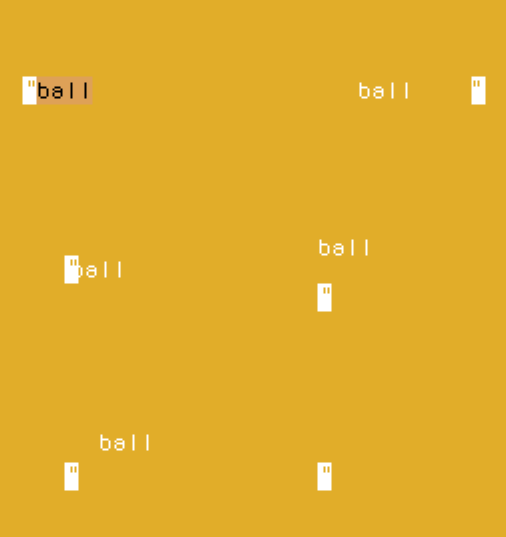
any thrown text can be catched by pressing alt:
stamping
carried text can be stamped by pressing enter:

this is very useful to draw patterns
large character stamps
you can pick up a large stamp of the character under the cursor by holding shift before pressing alt
by default it will be made out of rectangles, but if you're in caw mode and already carrying a character, it will be used instead
so you could stamp a heart made of crows or a crow made of hearts, for example
Basil
Basil started as a way to write shorthand Hydra code. It's still reads and behaves very much like Hydra. The current version does not have complete docs yet. Check the discord (#basil) for help
Here is the documentation that is available. Here's Hydra documentation in case it is somehow helpful to you.Portals
You can make portals to other rooms by using the @
character. If you type @ and a name (for
example: @myroom) you create a portal to a
room with that name. If you position your cursor on top
of the @ and press Enter, you will be sent
to that room.
A portal without name (a lonely @ symbol)
will always send you to the home room, the one people
spawn into by default. If you are ever lost, just type
@ and Enter it.
Rooms become unavailable when the ravioli day is over (every 25 hours).
To make a permanent room, start the name of your portal with a '!'.
Example: @!exampleroom
Sleeping
after not typing for 1-2 minutes, your cursor will go to sleep and start sleep walking
it will try to jump to a specific type of surface then keep to it.
default is most of the box drawing characters, but you can choose a specific set using
$surf=
when sleeping, your cursor will drive by auto execute any steppable command blocks it touches as if
it had stepped on the ! character
when auto walking your cursor will randomly perform lil actions like catch bubbles, hitch rides, share mantras, caw etc. aura also changes sleep walking behaviours
Sleep commands
-
$sleep,$nap,$zzz: puts your cursor to sleep immediately -
$insomnia,$coffee,$awake: prevents your cursor from auto sleeping. you can still manually take naps -
$sleepc=x,$sc=x: change the color of afk user's cursors. You can use color names or #hex codes. -
$surf,$surface,$perch: which set(s) of selection box drawing characters to use as surface filter. default is123456790(all, except 8)
Aura
having aura attracts the sleeping who will loiter, caw and move their eyes in your vicinity
falling asleep due to inactivity will lose your aura. going to sleep normally (via commands) preserves it
if you go to sleep with aura, you fly over all surfaces
and will look for @ portals or _
(underscore) driving seats and pick up ships. you will also
spawn a ship if there aren't any on the screen
others can hitch a ride and you can take them through portals. you can also hitch a ride with other aura sleep walkers and get taken through portals
Aura commands
-
$aura,$auraall: aura for yourself or everyone in the room -
$dim,$dimall: remove aura from yourself or everyone in the room
More controls
You can press ALT to grab a block of text, use the arrow keys to move it, and then press ALT again to drop it in place. You can stamp the grabbed text instead of placing it down by pressing Enter.
ALT+Backspace deletes the block of code at your cursor.
Shift+Tab will toggle special character mode, in which your keys will type an alternate group of graphical characters. Use uppercase letters or numbers for even more characters.
Holding shift and moving around will select an area of characters. When you have a selection, you can do the following things:
- Grab it by pressing ALT.
- Replace everything in the selected area by typing a character, or delete it by pressing Backspace.
- Delete it by pressing ALT+backspace, as you would with a code block.
- Press CTRL+[a number], to fill the selected area with some special box-drawing characters. Different numbers give different styles.
- Tap shift to unselect.
While in caw mode, you can write stuff and press Spacebar to send a temporary message to chat with others. If you type the name of a sample, like 'crow', it will make the sound.
While holding shift on top of a character, tap alt to pick it up as a big version of it, made out of another character. By default it will be made out of black rectangles, but if you are holding a symbol when you tap alt, that symbol will be used to fill the shape of the character instead.
CTRL+SHIFT+ALT+Backspace to delete everything in a room.
Home and End keys work too. If you hold shift while pressing Home or End, you will select everything in your path.
Commands
You can make interactable commands by typing $ and then the name of a command. To execute the command, place your cursor on top of the $ and press enter.
List of commands:
-
$bg=x,$b=x: change the background color of the room. You can use color names or #hex codes. -
$color=x,$c=x: change the color of text in the room. You can use color names or #hex codes. -
$curcol=x,$cc=x: change the color of user's cursor. You can use color names or #hex codes. -
$permcurcol=x,$pcc=x: change the color of the user's cursor, does not get reset between rooms or by other commands. -
$permcurcoloff,$pccf: disables permcurcol. -
$accent=x,$ac=x: change the color of user's cursors' eyes. You can use color names or #hex codes. -
$haps=true/false: enable or disable strudel highlights for you. -
$blocks=1/0/true/false,$block=1/0/true/false: enable or disable block highlights for everyone in the room. -
$row=x,$rows=x: change the ammount of character rows in the room, i.e. its width. This doesn't work in the home room. -
$col=x,$cols=x,$columns=x: change the ammount of character cols in the room, i.e. its height. This doesn't work in the home room. -
$scale=x: change the scale of the ravioli. Default is 2. -
$hide,$noeditor: hide the ravioli editor. -
$show,$unhide,$editor: unhide the ravioli editor. -
$s=bd:2,crow,atlast:1: comma separated list of samples to play once -
$export: download a text file of the room. -
$fly,$replace: turn your cursor back into the normal replace mode. -
$serenity: mute caw made sounds until refresh -
$puzzle,$collision,$collide: puts your cursor into collide mode, making you unable to pass through characters. -
$start=x: sets a character to be the location you will teleport to when respawning. only the first character found when scanning the room will be used. -
$respawn,$restart,$res,$r,$ret,$retry: sends you back to the start and respawns all termporarily deleted characters. you can also press Backspace or Delete while in a gamey mode (collision or gravity). it can be useful to put $restart on the $init stack so that jammers that join the room get teleported to the start character. -
$resetall,$respawnall: force all players in the room to respawn. -
$score: display your score as a fading bubble. -
$randinst,$randbreak,$randbank: attaches the name of a random instrument, breakbeat, or sound bank to your cursor. -
$kb: Play drums and notes with your keyboard. Press Arrow Up to switch between drums and piano. -
$flock: Fly around! Use the mouse to steer. Press tab to return back to cursor mode. -
$togglerainbowcaw,$trctoggle rainbow caw mode, when you caw in bird mode, it will now be a rainbow. - Sleep related commands
Steppable commands
any ! characters anywhere inside a command block become triggers that immediately
execute the block when stepped on. sleep walkers will execute steppable blocks just by
touching/passing by them
$R command globals
commands matching regexp $R\w+ will make the raw value available as a global to strudel
blocks. this is just a very crude preprocessing step. all blocks will then be ran as if with
cmd/ctrl-enter
R commands consume the rest of the current line so you cannot chain other commands with space as usual. some examples:
-
$Rs=crow*2 - bd(5,*): used withs("$Rs") -
$RFX=.delay(.5).room(1).lpf(1000): used withs("airhorn").chop(8)$RFX
$Rpat="9 8 3@3".fast(2): used with s($Rs)
Auto-executing $init commands
You can auto-execute commands so that they get
automatically applied for anyone that enters the room.
To do this, type $init, and then list the
commands bellow (without the $), like this:
$initcolor=whitebg=blue
Cawing commands
When pressing spacebar to release text, if it is a command, it will be executed.
Saving/Loading
You can save the current room to a "ravioli cartridge", then load it to view it again later.
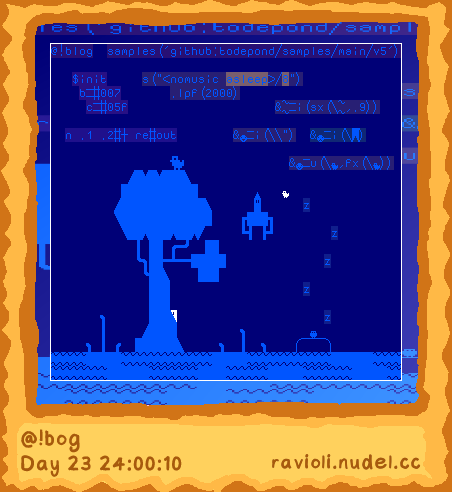
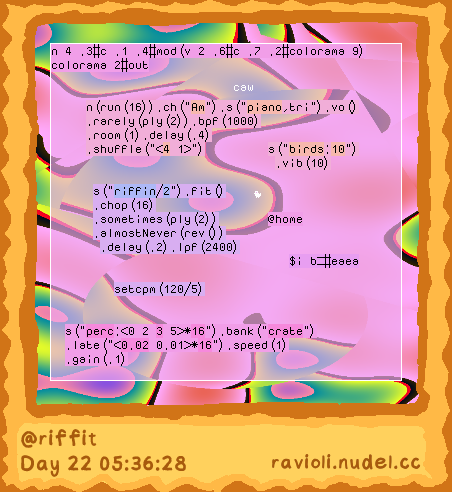
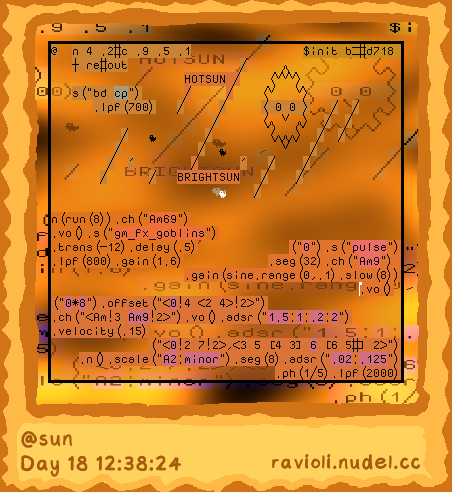
The cartridges show the room name and the day/ravioli time they were created.
You can save a cartridge by clicking "Save" in the bottom right of the screen. It will save as an image file.
You can load a cartridge by clicking "Load" in the bottom right of the screen. You can also load a cartridge by dragging and dropping it onto the ravioli browser window. Loaded cartridges will open in a new pasta-named room. They will not overwrite the currently loaded room.
Try saving one of the cartridge image above to your computer and loading it! Save your favorite creations and send them to your friends!
The room data is stored using LSB Stegonography. The data will remain intact unless the image gets compressed! This is the same method PICO-8 uses to store game data.
Cart Gallery
There's a selection of saved carts in the "cart gallery", which is accessible via the "cart gallery" link in the bottom left.
Opening the cart gallery shows all of the loadable carts. Click one to load it!
Add your own carts by putting them in the "assets/carts" directory, and then adding the filename to the "carts" array in the src/constants.js file.
Cart saving/loading corruption
Ravioli uses <canvas> to retrieve room text from saved cartridges, and to create cartridges.
Browsers however may introduce some subtle/extreme noise into <canvas> to reduce the effective of some forms of tracking,
which can subtly/extremely corrupt Ravioli's cartridges.
Ravioli will self-check whether the <canvas> is being tampered by your browser, and it will alert you if that's the case.
Even if cartridges look like they loaded fine, they still may have minor corruption regardless.
If you're saving and Ravioli complains, you may create a corrupted cartridge!
Resolve the issue first, then save again, so that you create an uncorrupted cartridge.
To attempt to resolve cartridge saving/loading corruption:
- Disable any extensions that block the use of
<canvas>(e.g. CanvasBlocker) - Exempt Ravioli from any browser built-in tracking protection (e.g. Firefox's Enhanced tracking protection - shield icon in URL bar)
- If you're prompted whether to allow HTML5 canvas usage by your browser, click allow for cartridges to work. (e.g. LibreWolf - picture icon in URL bar)
To check whether you're still affected, click the save button in the bottom right corner. If you can save with no message popping up about corruption, it should be fine. You can double check by loading the just saved cartridge.
PuzzleScript
Ravioli has its own implementation of PuzzleScript, a scripting language designed to make tile-based puzzle games.
Sections:
- Overview
- In-depth Explanation
- Examples
- Full Sokoban Script
Overview
PuzzleScript works by defining a 'before' and 'after' pattern. Every time you move, ravioli will scan
the entire room looking for the 'before' pattern, and if found, it will get replaced by the 'after'
pattern.
IMPORTANT: note that these rules only apply if you are in "game mode", enterable by running the
command $puzzle, $collide or $collision.
Because of this, it can be useful to have this block of code somewhere in the room:
$init puzzle start=S r This will set joining Player's mode, set their starting
position to 'S' (or whatever character you want), and restart, teleporting them to the
start.
A Player can always restart by pressing Backspace or Delete, and exit "game mode" by pressing Tab.
Here's an example of the famous box pushing game Sokoban:
{>|x}->{>|>x}
This rule is divided by an arrow ->, which separates the 'before' and 'after' patterns.
The 'before' pattern {>|x} is looking for two things next
to each other, as denoted by a pipe |.
The first thing is >.
The bird symbol is used in ravioli's PuzzleScript to denote
the Player.
The arrow > behind it denotes its intention to move forwards. When the Player
presses an arrow key, they are marked with the intention to move.
There are four directions you can represent with these characters: > v < ^.
Directions are relative to the reading direction of the rule. > would be forwards,
< backwards, ^ to the left and v to the right.
This might seem confusing, but its easier if you think about the rules as pictures.
>|x looks like a bird moving TOWARDS an x.
The second thing is x, meaning the character 'x', which is the character we will use in
our example game to represent boxes.
Once the 'before' pattern is found, it will be replaced by the 'after' pattern.
In this case: {>|x} will be replaced by
{>|>x}.
In the 'after' pattern, our box x is also marked with the intention to move
>. This will result in the box moving with the Player, effectively pushing it.
You can read the rule like this:
{>|x}->{>|>x}
A cursor moving into an 'x' will become a moving cursor and a moving 'x'.
You could make a rule that that lets the player pull boxes instead, which would look like this:
{<|x}->{<|<x}
A cursor moving backwards away from an 'x' will become a backwards moving cursor and a backwards
moving 'x'.
You can make any patterns and have them transform in a number of different ways. Imagine you want to
make it so lining up three boxes in a row makes them disappear:
{x|x|x}->{ | | }
This will behave a little bit strangely, because rules get evaluated before movement. This means
that if you line up three boxes by pushing them in a line, the boxes will only disappear once you
move again.
To fix this, you can add the LATE predicate to the rule, which makes it evaluate
after all movement has been resolved:
(LATE){x|x|x}->{ | | }
Rules are evaluated in all four directions by default, but there are some predicates you can use to
limit the directions of the rule:
(UP), (DOWN), (LEFT), (RIGHT),
(HORIZONTAL), (VERTICAL)
If you want multiple predicates you can separate them with commas: (LATE,UP)
You can run commands when a rule applies. These commands can be any ravioli $ command,
any @ room name, any sound sample name, and a few PuzzleScript specific commands.
Commands are defined between parenthesis after the rule.
For example, if you wanted to make the box make a high-hat sound every time you push it, you could
do it like this:
{>|x}->{>|>x}(hh)
An 'after' pattern is not required. You can make a command happen if the 'before' pattern is found.
For example, if you wanted a portal to take you to the next level, you could write it like this:
{>|P}->(@level2)
In-depth Explanation
Getting a little bit more about the technical functionallity of the script, here is the full format
of a rule:
(PREDICATES){BEFORE}->{AFTER}(COMMANDS)
Rules only get applied if you are in "game mode", enterable by running the command
$puzzle, $collide or $collision.
Patterns (before / after)
Patterns define an arrangement of characters. The 'before' pattern is what we will be looking for, the 'after' pattern is what it will become if found.
A pattern can be one or more characters separated by pipes |.
Those characters are treated as 'next to each other', so the pattern {A|B} will look
for an A next to a B.
The room gets scanned for patterns in all four directions by default, so the A and the B could be in
any orientation, as long as they are next to each other.
If the pattern gets found, each character in the 'before' pattern will transform into its
corresponding position in the 'after' pattern.
For example: {A|B}->{C|D}, the A will become a C, and the B will become a D.
There is no defined behavior for 'before' and 'after' patterns with different amounts of characters.
Special pattern characters
There are some special characters that can be used to add extra information to each part of the pattern.
denotes the Player. If its found in a different place in the
'after' pattern than in the 'before' pattern, it will teleport there.
For example: {|x}->{x|} If a
Player is next to an 'x', swap places.
>: denotes intention to move in the reading direction of the rule. It will look for
things that have that intention if placed in the 'before' pattern, and it will impart that intention
if placed in the 'after' pattern.
v, < and ^ represent the other directions.
When a Player presses a movement key, they get marked as having the intention to move. This
intention might be presserved by the rule, or changed.
For example: {>}->{<}
Invert the movement intention, effectively reversing the controls of the player.
Any object can have the intention to move, if you impart it with a rule. This means you can make
rules that look for moving objects. For example, if you wanted to be able to push multiple boxes in
a row, you could write this:
{>|x}->{>|>x} Players
can push boxes.
{>x|x}->{>x|>x} Boxes can push boxes.
A denotes an Acting Player. This is a Player that just
pressed the Action key, which is set to Spacebar or Enter.
... is a symbol you can use to represent any amount of blank spaces. This means you can
make rules that work at any distance.
For example: {>|...|A}->{ |...|}
A Player moving in the direction of an A, teleport to it, no matter the distance as long as the
path is clear.
? is used to denote 'no change'. It can be thought of as 'whatever was there before'.
For example, if you wanted to make passable objects:
{>|P}->{ |}
You would sometimes find that the Player was standing on top of a character when it moved.
If you don't want that character to disappear when the Player steps off, you can't leave a 'space'
behind, because it would erase whatever they were standing on.
The solution is to use the ? symbol:
{>|P}->{?|}
You can represent characters overlapping with the Player by placing them together:
A means a Player standing on an A.
: is used to read or override what the Player is carrying.
:A means a Player carrying an A.
{:k|D}->{:| } A Player carrying
a 'k' in front of a 'D' will become a Player carrying nothing in front of a space, effectively
removing the carried letter and the letter in front.
Multiple patterns
You can actually have more than one 'before' and 'after' patterns in a single rule. The rule will scan for all of them, and apply them all if found, but they can be in completely different parts of the room. This can make rules that have distant effects on unrelated objects.
{>}{C}->{>}{>C} A moving
Player and C's anywhere else will become a moving Player and moving C's
Predicates
Predicates are extra conditions you can add to the left of a rule to restrict or modify its function.
(LATE) makes the rule apply after movement. This is useful for checking proximity
conditions, as you would likely want those to be checked after stuff have been pushed.
(RIGHT) makes the rule apply only towards the right (from left to right). There are many
directional predicates: (UP), (DOWN), (LEFT),
(RIGHT), (HORIZONTAL) or (HOR), (VERTICAL) or
(VER), and (DOWNRIGHT) or (SCAN).
These can be used for example as a box you can only push up or down:
(VER){>|X}->{>|>X}
You can have multiple predicates in a single rule by separating them with commas:
(LATE,VERTICAL)
Commands
You can run commands if the 'before' pattern gets found, by writing them in parenthesis after the
rule.
These commands can be ravioli commands (if they start with $), room names (if they
start with @) or one of PuzzleScript's commands.
{>|0}->{>| }(hh) Play a
high-hat sound when you grab a coin.
An 'after' pattern is not mandatory. You can use the 'before' pattern as a condition to run a command.
{>|W}->(@level2) A Player moving into a W will teleport
to level2.
{>|L}->($respawn) A Player moving into an L will run the
$respawn command.
You can combine multiple commands by separating them with a comma.
{>|W}->(@level2,hh) A Player moving into a W will
teleport to level2 and make a high-hat sound.
By default, sounds with multiple samples will play a random one. You can set which one you want with
a :
{>|W}->(@level2,hh:3) A Player moving into a W will
teleport to level2 and make the high-hat sound, sample 3.
You can also invert commands by using a !. This will run the command if the 'before'
pattern is not found anywhere in the room.
{0}->(!@level2,!space:4) If there are no coins ('0') found in the room, teleport to
level2 and play the fourth space sound.
again is a PuzzleScript command that will briefly take away control of the player and
execute all rules again after a short delay. This also forces the Player to move again, if the rules
impart a movement intention onto the Player.
score is a PuzzleScript command that will increase the score of the Player by 1. You can
change how many points they gain by providing an argument: score=10
Examples
These are examples of commonly used puzzle elements.
Push
{>|x}->{>|>x}
A Player moving into an 'x' will push the 'x'.
Push multiple in a row
{>|x}->{>|>x}
{>x|x}->{>x|>x}
A Player moving into an 'x' will push the 'x'. An 'x' moving into another 'x' will push that 'x'
too.
Pull
{<|x}->{<|<x}
A Player moving away from an 'x' will pull the 'x'.
Pull multiple in a row
{<|x}->{<|<x}
{<x|x}->{<x|<x}
A Player moving away from an 'x' will pull the 'x'. An 'x' moving away from another 'x' will pull
that 'x' too.
Directional push
(HOR){>|h}->{>|>h}
A Player moving horizontally into an 'h' will push the 'h'.
(VER){>|v}->{>|>v}
A Player moving vertically into a 'v' will push the 'v'.
Coin
{>|x}->{>| }(v:1,score)
A Player moving into an 'x' will delete the 'x', play the first sample of the sound 'v', and
increase score by 1.
Hazard
{>|x}->($respawn)
A Player moving into an 'x' will run the $respawn command.
Pickup
{>:|x}->{>:x| }
A Player carrying nothing and moving into an 'x' will become a Player carrying an 'x', and delete
the 'x' in front.
Key and Door
{>:|k}->{>:k| }
A Player carrying nothing and moving into a 'k' will pick up the 'k'.
{>:k|D}->{>:| }
A Player carrying a 'k' moving into a 'D' will loose the 'k' and delete the 'D'.
Passable character
{>|p}->{?|}
A Player moving into a 'p' will teleport to it.
Portal
{>|p}->(@roomname,space:4)
A Player moving into a 'p' will be sent into the room 'roomname', and play the sound
'space:4'.
Win condition
{W}->(!@roomname,!space:4)
If there are no 'W's in the room, teleport to 'roomname' and play the sound 'space:4'.
Slippery
{>|s}->{?|>}(again)
A Player moving into an 's' will teleport to it and retain the intention to move. Then, execute
rules again.
Clone
{>}{C}->{>}{>C}
C's anywhere in the room will copy the Player's movement.
Reverse Clone
{>}{C}->{>}{<C}
C's anywhere in the room will copy the opposite of the Player's movement.
Reverse controls
{>}->{<}
A Player moving in one direction will instead moving in the other direction.
Full Sokoban Script
To make the full game of sokoban we have to get a little creative, since we don't have layers in
order to push boxes on top of buttons.
We will represent boxes with O, buttons with . and boxes on top of buttons
with 0.
{>|O| }->{>|>O| }
Player can push an 'O' into an empty space
{>|O|.}->{>| |0}
Player can push an 'O' into a '.' and it will become a '0'
{>|0| }->{?|.|O}
Player can push an '0' into an empty space and it will become an 'O', leaving a '.'
behind
{>|.}->{?|}
Player can move into a '.'
(LATE){.}->(!@victoryroom)
If there are no '.' left, teleport to @victoryroom
&.=sy(\.,0,4)
Optional aesthetic change that makes the '.' slightly higher. See Rendering Rules.
Rendering Rules
You can alter the rendering of any character using a rendering rule.
To make a rendering rule you type
&A=b replacing A with your character
and b with a special expression.
Special expressions are basically just funky looking javascript code.
\A will express the character A.
So for example &A=\B will render the
character A as the character B.
Next are functions which modify rendering of their arguments in some way.
Take the invert function for example:
i(A) which will render its argument
A but will invert every pixel.
Using it would be like &A=i(\B). this
code will render the character A as an inverted
character B.
You can nest functions to make more complex rendering rules.
For example adding the flip x function to our code to
make &A=i(fx(\B)) will render the
character A render as a flipped, inverted B.
Function Reference
(Note: _ = _ means an argument is optional and will have that value by default)
i(A) inverts A
fx(A) / fy(A) flips A
vertically or horizontally
u(A, B) unions/adds A and B
n(A, B) intersects/multiplies A and B
d(A, B) differences/subtracts B from A
sx(A, B = 1, C = 0) /
sy(A, B = 1, C = 0) scrolls A with a speed
of B pixels per second and with an offset of C pixels
ax(A = 0, B = 7, ...) /
ay(A = 0, B = 14, ...) arranges ... in
order vertically or horizontally with an offset of A
pixels and a size of B pixels for each ...
a(A = 1, B = 0, ...) shows a single thing
from ... in order every A seconds with a time offset of
B seconds
fd(input, factor = 0, seed = 0) Fades the pixels of 'input' by 'factor' (0-1) randomly.
'seed' changes the random pattern.
di(input, factor = 0) Fades the pixels of 'input' by 'factor'% (0-1) using a 4x4 bayer
matrix
r(A) references another rendering rule.
Math and Lambda Function Reference
Use these in place of other values such as numbers.
These will only ever work with numbers or more Math/Lambda functions as arguments (unless stated otherwise).
ma(...) adds all of ...
mm(...) multiplies all of ...
md(divisor, dividend = 1) 'dividend' divided by 'divisor' (yeah its backwards idk why)
ms(input, amplitude = 1, frequency = 1, offset = 0) sin(2PI * input * frequency +
offset) * amplitude
mo(amplitude = 1, frequency = 1, offset = 0) oscilates between 0 and 'amplitude' in a
sine wave with some 'frequency' and 'offset'. (sin(2PI * input * frequency + offset) * 0.5 + 0.5) *
amplitude
mab(value = 1) absolute value
mf(value, modulo = 1, multiplier = 1) fraction of 'value'. (value % modulo *
multiplier)
lx(multiplier = 1) / ly(multiplier = 1) returns
the pixels x or y position multiplied by 'multiplier'
lcx(multiplier = 1) / lcy(multiplier = 1) returns
the column or row position of the character multiplied by 'multiplier'
lt(multiplier = 1) returns the time since start in
seconds multiplied by 'multiplier'
lft(speed = 1, multiplier = 1, offset = 0) returns the decimal fraction of the time
since start in
seconds sped up by 'speed', and then multiplied by 'multiplier', offset by 'offset'.
Shorthand
If you want to write multiple characters as parameters, you can do it by putting them inside curly
brackets:
{ABC} will be parsed as \A,\B,\C
You can also escape characters inside of the curly brackets. Useful if you need some space and you
dont want to break the code block:
{A B} Three spaces would break the code block.
{A\ \ \ B} This would keep it together.
Contribution
Everyone can contribute to Ravioli.
Most of the code is contained in one script.
To join the development log into anonymous_nudelfan on Codeberg with the password letcode***.
You're now a ravioli developer!
You can either make changes directly in the browser, to the files on Codeberg, or if you want to make bigger changes, you can also develop locally. First make sure to git clone the repo to an appropriate place on your machine. If you are using VSCode or VSCodium, etc. you can use the Live Server extension to preview your local changes. To push your local changes to Codeberg, either use the anonymous_nudelfan git user with the anonymous_nudelfan@noreply.codeberg.org email or create a new secret.
The base of ravioli is its unique text rendering. While some elements are in the DOM (and that's totally fine!) most of the focus is on the pixel grid. The connection is currently handled over a websocket server described in the server.js file.
Structure
Key bites:
- editor.js contains the big bulk of logic for what you can do as a cursor. This means, movement, size of the grid, different modes, making sounds, other input tricks, etc.
- The _paint() function shows you exactly what is being calculated every tick of the game. It has many of the drawing functions, which means it shows the way the objects get rendered as well as how they are updated every frame.
- In script.js you can see many of the elements which are created at startup.
- Multiplayer Cursors work by sending the getLocalCursor() (session.js) data over sendCursor() in editor.js Movement logic can be found in #Input.
Server
The rooms are stored in the server as .txt files. The rooms do not get deleted in the code, they just get a different weekly prefix and thus become "inaccessible" (this is purely client side code so can be changed). When the server is full you will get a connection error when trying to create to a new room.Multiplayer
let cursor = {
      col: editor.col,
      row: editor.row,
      mode: editor.mode,
      dir: editor.dir,
      vdir: editor.vdir,
      ...
The sendCursor() function sends your cursor to all other clients.
This is what other clients need to see your updated cursor.
Call it every time something in the local editor was changed, which you want
to sync to other clients.
Other's cursors are available to you in the editor.remoteCursors array.
If you make any new local changes, which you want to be synched make sure to add them to the
cursor object, and
handle the new object value from the remote cursors array accordingly, or you won't see other's
updates.
Another simple way to add Multiplayer functionality is by using the broadcasting ravioliCommand() system as a way to send events to all cursors.
Example Contribution
Currently there is the $b=[color] command for setting the backdrop of the grid to a color. But there is no way to set the background outside of the grid. Let's change that. We're jumping to #Commands to see how the code for the other color works.
This is the part responsible for setting the background color:
} else if (["bg", "b"].includes(cmd)) {
    this.font.bgColor = this.parseColor(args);
}
Let's simply copy it and adjust it for what we want:
} else if (["obg", "ob"].includes(cmd)) {
    document.body.style.backgroundColor = args;
}
The color doesn't need to be parsed as it's simply set to be css instead of in the pixel grid.
Let's also add it to broadcasted commands above(so every cursor gets the change):
"obg",
"ob"
]; // commands broadcasted to all users